The best cloud storage for backing up a small business is not the one with the most gigabytes for the least money. It is the one that lets you get every file back, quickly, on the worst day your business has — the day a laptop is stolen, a ransomware note appears, or a flood reaches the office. The plan that does that reliably is the 3-2-1 rule, and this guide works it out for a real small business: three copies of your data, on two different kinds of storage, with one copy off-site.
Most small businesses already believe they are backed up. They are not. A file in Google Drive or Dropbox is synced, not backed up — delete it on one device and the deletion syncs everywhere. A single external hard drive on the office desk is a backup until the same fire, flood, or thief that takes the computer takes the drive too.
What is the 3-2-1 backup rule, exactly?
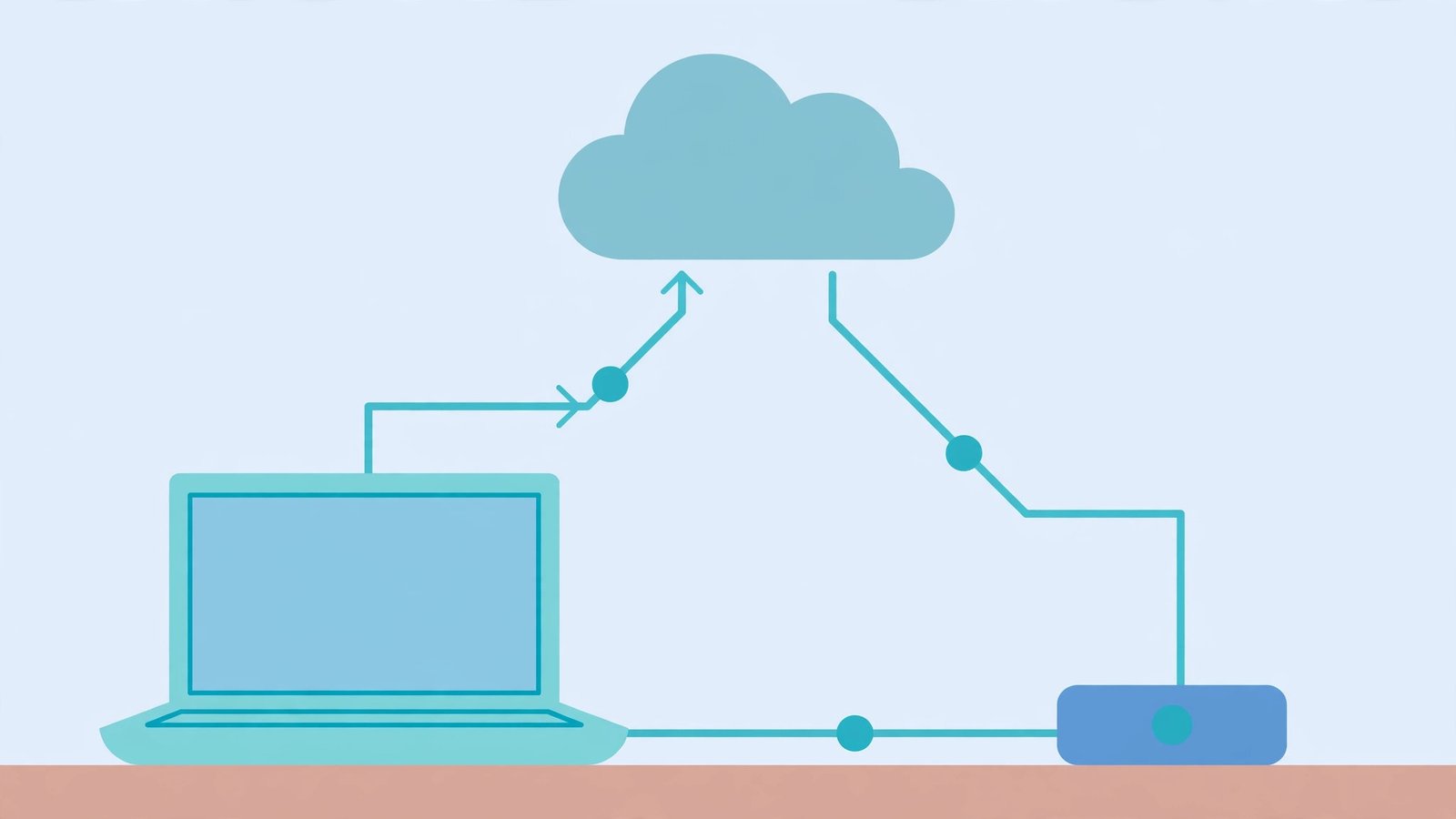
The 3-2-1 backup rule is a simple formula: keep 3 copies of your data, stored on 2 different media types, with 1 copy off-site. Copy one is the original — the files on your work computers. Copy two is a local backup, such as an external hard drive or a network drive in the office. Copy three is off-site, and for a small business that almost always means cloud storage: a copy that survives anything that happens to your building.
Why two media types? Because media fails in different ways: a hard drive dies mechanically, a cloud account can be locked or hacked. If both backups sit on the same kind of storage, one failure mode can take both. Why off-site? Because theft, fire, and flood do not respect office walls.
How much data does a small business actually need to back up?
Before choosing storage, measure. A typical ten-person office holds far less than people fear: documents, spreadsheets, emails, and accounting files usually total 100–500 GB. Add photos or video and it can reach 1–2 TB. Check your shared drive’s real size and add 50% for two years of growth — that number decides everything else.
Which cloud storage is best for small business backups?
Five providers dominate small business backups, split into two camps: file-sync services you already know, and dedicated backup services built for the job.
Backblaze is the dedicated backup specialist and the best value for most small businesses. At roughly $9 per computer per month for unlimited storage, it backs up everything automatically, keeps old versions for 30 days (a year on the extended plan), and restores by download or shipped hard drive. Its weakness: it backs up computers, not servers or network drives.
Google Drive (Google Workspace) is the best backup cloud if your business already lives in Google. Business Standard at around $12 per user per month includes 2 TB pooled storage per user. But remember the sync trap: Drive mirrors deletions unless you add a separate backup tool. Drive is a fine off-site copy inside a 3-2-1 plan; it is not a backup strategy on its own.
Microsoft OneDrive for Business plays the same role for Microsoft 365 shops, included in most business plans with 1 TB per user. Its version history rescues accidental deletions and ransomware-encrypted files. Like Drive, it needs a genuine backup layer — a third-party backup of your Microsoft 365 data — to count as a real off-site copy rather than a sync mirror.
Dropbox Business earns its place on sharing and reliability rather than price. At around $15 per user per month it is pricier, but Dropbox Backup adds true scheduled backup of computers and external drives. Choose it when your team shares large files with clients daily and the backup must ride along with that workflow.
IDrive is the budget pick for businesses with several computers. One plan covers multiple devices, includes a free physical drive for the first backup, and keeps up to 30 versions of every file. For a five-computer office on a tight budget it is the cheapest genuine backup in this list.
How the five compare at a glance
| Provider | Best for | Starting price* | Storage model | Version history |
|---|---|---|---|---|
| Backblaze | Single-computer backup | ~$9/computer/mo | Unlimited per computer | 30 days (1 year extended) |
| Google Drive | Google Workspace shops | ~$12/user/mo | 2 TB pooled per user | 30 days / 100 versions |
| OneDrive for Business | Microsoft 365 shops | Included in M365 | 1 TB per user | 30 days / 500 versions |
| Dropbox Business | Sharing-heavy teams | ~$15/user/mo | 3 TB+ per team | 180 days |
| IDrive | Multi-computer offices | ~$80/year (5 TB) | Fixed plan, many devices | 30 versions |
*Prices are approximate list prices as of late 2026 — always get a written quote before budgeting.*
A worked 3-2-1 plan for a ten-person business
Take a ten-person consultancy with 400 GB of documents, email, and project files. Here is the whole plan, costed:
Copy 1 — the originals. The files live where the team works: Google Workspace or Microsoft 365, plus local laptops. Cost: already paid for.
Copy 2 — local backup. A 2 TB external drive on the office’s main workstation, running an automatic nightly backup of the shared folders. Cost: about $80 once.
Copy 3 — cloud backup. Backblaze on each of the five main workstations, or one IDrive plan covering all of them, running continuously. Cost: roughly $45–80 per month. The first upload of 400 GB takes a few days on a typical business connection — start it on a Friday afternoon and let it run over the weekend.
Total: under $100 a month and one $80 drive. That buys survival of a stolen laptop (restore from the cloud), a ransomware attack (restore a pre-attack version), and a flooded office (the cloud copy does not care about the weather).
The step most businesses skip: the restore test
A backup you have never restored from is a hope, not a backup. Every quarter, pick one folder at random and restore it to a spare laptop. Time the restore and check that the files open. This single habit catches the failures statistics miss: the backup job that silently stopped three months ago, the account whose card expired, the folder that was never included. I have seen a business discover, during a restore test, that its “automatic” backup had excluded the accounting folder — the one folder that mattered — for eight months. The test took twenty minutes.
What about ransomware?
Ransomware is why version history matters more than storage size. A backup that syncs encrypted files over good ones is worse than useless. Your off-site copy must keep old versions for at least 30 days, ideally 90, so you can roll back to before the attack. Backblaze’s extended history, Dropbox’s 180-day rewind, and OneDrive’s version history all do this — but only if versioning is switched on. Check it today, not after the ransom note arrives.
Which one should you choose?
If your business runs on Google, start with Drive plus a dedicated backup of your Workspace data. On Microsoft, OneDrive plus a third-party Microsoft 365 backup. For the simplest true backup, Backblaze on every workstation. Five or more computers on a tight budget: IDrive. Large files shared with clients daily: Dropbox Business earns its premium.
The best cloud storage for backing up a small business runs automatically, keeps old versions, and lives somewhere your building’s worst day cannot reach. Set it up this week, test a restore next week, and you will have done more for your business’s survival than most competitors ever will.
Frequently asked questions
Is Google Drive or Dropbox a backup?
Not on their own. They sync files, which means a deletion or ransomware encryption on one device spreads to the cloud copy. They become a genuine backup only when paired with version history and a separate backup tool — or when they are one copy inside a 3-2-1 plan, not the whole plan.
How much cloud storage does a small business need for backups?
Measure your real data, then add 50% for growth. Most ten-person offices need 500 GB to 2 TB. Price by that number, not by the headline “unlimited” claim — unlimited plans usually cover one computer, not a whole office.
What is the 3-2-1 backup rule in simple terms?
Three copies of your data, on two different kinds of storage, with one copy off-site (usually in the cloud). It protects against the three common disasters: hardware failure, accidental deletion or ransomware, and anything that destroys your building.
How often should a small business test its backups?
At least once a quarter: restore one random folder to a spare machine and check the files open. A backup that has never been restored is unproven, and most silent backup failures are only found by testing.