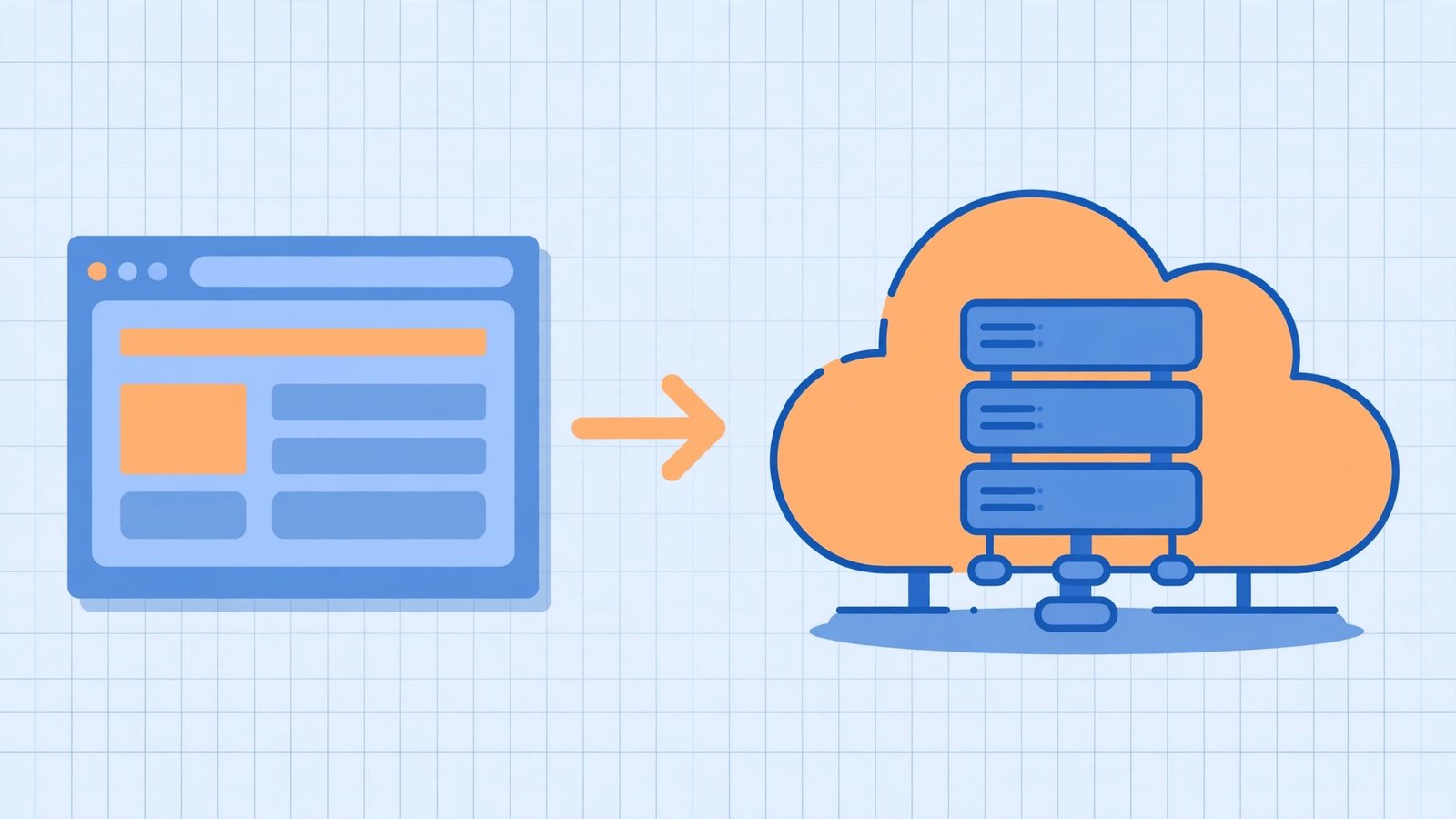
To move a WordPress site to AWS as a beginner, the simplest reliable path is Amazon Lightsail: sign up for an AWS account, launch the pre-configured WordPress instance, copy your site’s files and database over, point your domain to the new server, and switch on HTTPS. This guide walks through every single step in order, assuming you have never opened the AWS console before.
Moving to AWS sounds intimidating because AWS is famous for having two hundred services with three-letter names. But for a typical WordPress site, you only need one of them — and it does most of the heavy lifting for you. Let’s go through it at a pace that assumes nothing.
Why Move a WordPress Site to AWS in the First Place?
Most beginners move because their shared hosting got slow, support stopped being helpful, or they outgrew their plan right when a post took off. AWS gives you a virtual server that is entirely yours — no neighbors hogging CPU at peak hours — for a flat monthly price that starts around $3.50. It is also the fastest way to learn cloud hosting hands-on, since you control the whole machine.
That said, be honest about whether you need this. If your site is small, gets steady traffic, and your host is fine, a shared host or a managed WordPress host is still simpler. AWS shines when you want performance headroom, predictable costs, and the freedom to configure the server your way.
What You Need Before You Start
Gather these four things first so you do not get stuck halfway through:
- An AWS account. Go to aws.amazon.com and sign up. You will need an email address, a credit or debit card (it is charged nothing if you stay on the free tier or Lightsail’s flat pricing, but AWS requires one on file), and about ten minutes for identity verification.
- Access to your current site. You need your WordPress admin login and access to your hosting control panel (cPanel or similar) so you can download your files and database.
- Your domain registrar login. Wherever your domain is registered, you will need to change its DNS settings.
- A fresh backup. This is non-negotiable. Install a backup plugin like UpdraftPlus on your current site and take a full backup before touching anything. Store it somewhere off the site — your computer, Google Drive, anywhere except the server you are about to leave.
Do not skip the backup. Migration guides always say this because something always goes wrong the first time someone migrates.
Step 1: Launch Your AWS WordPress Server With Lightsail
You have probably heard of EC2, AWS’s famous virtual server service. As a beginner, ignore it for now — Amazon Lightsail is the right door. Lightsail sells simple virtual servers with flat monthly pricing and ships a one-click WordPress blueprint.
Here is the console-click version:
- Sign in at console.aws.amazon.com. In the search box at the top, type “Lightsail” and click it.
- Choose a region near your visitors (US East or your closest option). Click Create instance.
- Under Instance location, accept the default region. Under Pick your instance image, select Linux/Unix, then the WordPress blueprint. This installs WordPress, the web server, and the database for you.
- Under Choose your instance plan, pick the $3.50 plan (512 MB RAM, 20 GB SSD) for a starter site, or $5 if your site gets real traffic. Everything includes a data transfer allowance.
- Give the instance a name like
my-wordpress-siteand click Create instance.
Within a couple of minutes, Lightsail shows your instance as Running and displays its public IP address. That IP is your new server’s address — copy it somewhere. Your WordPress site is already installed there; it is just not your site yet.
Step 2: Get Into Your New WordPress Dashboard
Your Lightsail WordPress instance is protected by a default admin password. Retrieve it like this:
- On your Lightsail instance page, click Connect and choose Connect using SSH. A terminal window opens in your browser.
- In that terminal, paste this command and press Enter:
cat $HOME/bitnami_application_password - The terminal prints your password. Copy it.
- In a new browser tab, go to
http://YOUR-IP/wp-login.php(replace YOUR-IP with the public IP you copied earlier). Log in with the usernameuserand the password from the terminal.
You are now looking at a fresh WordPress install — the default theme, the “Hello world!” post, all of it. That is about to change.
One thing worth doing right now: in the new site’s WordPress admin, go to Users → Profile and change the admin email to your real address. Also delete nothing yet.
Step 3: Move Your Files and Database (The Easy Way)
There are two ways to move a WordPress site: manually exporting the database and copying files over FTP, or using a migration plugin. As a beginner, use a migration plugin — specifically the free All-in-One WP Migration plugin. It handles the database URL search-and-replace that trips up nearly every manual migration.
Here is the exact sequence:
- On your old site, install and activate All-in-One WP Migration. Go to All-in-One WP Migration → Export, click Export To → File, and download the
.wpressfile it creates. This file contains everything: files, database, plugins, themes. - On your new Lightsail site, install and activate the same plugin. Go to All-in-One WP Migration → Import, and drag the
.wpressfile in. Click Proceed when it warns about overwriting — this is a fresh install, there is nothing to lose. - After the import finishes, the plugin forces you to log out. Log back in — but use your old site’s admin credentials now, because the import replaced the new site’s user accounts with your old ones.
- Go to Settings → Permalinks and click Save Changes without changing anything. This one click rebuilds the URL rewriting rules and fixes most “page not found” errors after migration.
Visit http://YOUR-IP and confirm your site looks exactly like the old one — same posts, same theme, same images. If something looks off, check the permalinks step first; it solves the majority of post-migration weirdness.
Step 4: Point Your Domain at the New Server
Right now your site answers at an IP address. Let’s give it your domain:
- Back in Lightsail, go to Networking and click Create static IP. Attach it to your WordPress instance. A static IP stays fixed even if you stop and restart the server — without it, your IP could change and your site would vanish from the internet. This step matters.
- Copy that static IP (it may differ from the one you started with).
- Log in to your domain registrar (GoDaddy, Namecheap, Cloudflare, wherever) and find your domain’s DNS settings.
- Find the A record for
@(your root domain) and change its value to the static IP. Do the same for thewwwA record. If there is no A record, create one. - Save and wait. DNS changes propagate, usually within an hour, sometimes a few.
Then visit your domain name. If it loads your site, the domain cutover worked. If it still shows the old site, your computer may be caching the old DNS — wait longer or try a different network.
Step 5: Turn On HTTPS (Free SSL)
Your site currently loads over plain HTTP. Browsers will flag it “Not secure,” and Google ranks HTTPS sites better. Lightsail makes this free with Let’s Encrypt:
- SSH into your instance again from the Lightsail console (Connect using SSH).
- Run the built-in certificate tool:
- Run
sudo /opt/bitnami/bncert-toolin the terminal. - Follow the prompts: enter your domain name (both
example.comandwww.example.com), say yes to HTTP-to-HTTPS redirection, and let it fetch the certificate. - When it finishes, visit
https://yourdomain.comand confirm the padlock appears.
That tool also sets up automatic renewal, so you will never have to think about the certificate expiring.
What to Do After the Migration (Don’t Skip These)
The move is done, but a responsible migration finishes with three checks:
- Test everything that moves. Log in, submit a comment, test your contact form, and walk through any checkout or booking flow your site has. Database-driven features break most often in migrations.
- Keep the old site alive for a week. Do not cancel your old hosting yet. If anything is subtly wrong on the new server, you still have a working fallback and a fresh backup.
- Set up automatic backups on the new server. Lightsail offers instance snapshots — automatic daily copies of your whole server for a few dollars a month. Turn them on under your instance’s Snapshots tab. A backup you have to remember to take is a backup you will not have when you need it.
Common Beginner Mistakes (and How to Avoid Them)
Three traps catch nearly everyone the first time:
- Forgetting the static IP. If you skip Step 4’s static IP, a server restart can give you a new public IP and your domain will point at nothing. Static IP first, DNS second — always.
- Skipping the permalinks save. Half of all “everything migrated but every page is 404” reports are fixed by Settings → Permalinks → Save Changes. It takes ten seconds.
- Canceling the old host too early. DNS, email deliverability, and cached pages all need a few days to settle. One week of overlap between old and new hosting is cheap insurance.
FAQ
How much does hosting WordPress on AWS cost for a beginner?
The smallest Lightsail plan is $3.50/month with a flat fee — no surprise bills — plus roughly $3.50/month if you enable daily snapshots. That is the honest total for a starter site. EC2 without Lightsail’s flat pricing can be cheaper or wildly more expensive depending on configuration, which is why beginners should start with Lightsail.
How long does a WordPress-to-AWS migration take?
Plan for about an hour of active work the first time: launching the instance, exporting and importing the site, updating DNS, and enabling HTTPS. DNS propagation adds waiting time on top — anywhere from minutes to a few hours.
Will my site go down during the migration?
No — if you follow the order in this guide, your old site stays live the entire time. You build and test the new site at its IP address first, and only point your domain at it when everything works. The only downtime window is the few minutes (sometimes up to an hour) while DNS switches over, and visitors simply see the old site until then.
Is Lightsail the same as EC2?
Lightsail runs on the same AWS infrastructure as EC2 but wraps it in a beginner-friendly package: flat pricing, one-click app blueprints, and a simpler console. For a single WordPress site, it is the right choice. Move to EC2 later only if you outgrow Lightsail or need fine-grained control over networking and load balancing.